Configure Windows Updates in the Library
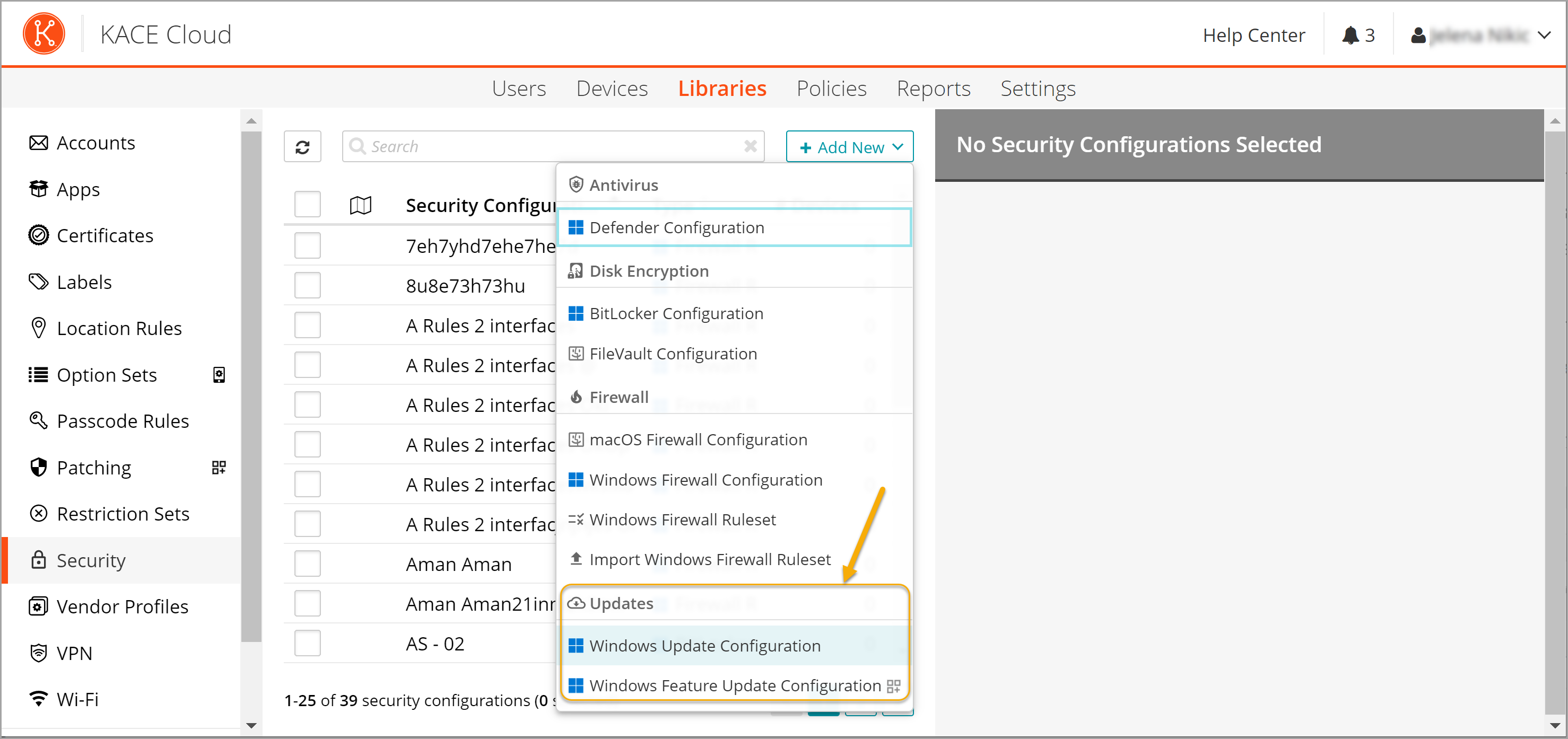
KACE Cloud allows administrators to create configurations that collect the latest Windows Updates containing the latest improvements and security fixes. You can also manage Windows Feature Updates on target devices, that contain new product or release versions, as applicable. These configurations are available in the Security Library. You can use them to, for example, control how users are notified about updates, when to install updates, enable the installation of bi-annual Windows releases on target devices, the use Windows Insider Beta and General Availability channels, and many other aspects of Windows updates.
|
|
NOTE: Windows Update Configurations are covered by your base KACE Cloud license. Windows Feature Update Configurations require an additional KACE Cloud Secure license. This license also provides access to patch management settings, that can be find in the Patching Library. To obtain a KACE Cloud Secure license, contact KACE Cloud Sales. A free 14-day KACE Cloud Secure trial license is available and can be started directly from KACE Cloud. For more information about KACE Cloud licensing, see About subscriptions and licensing. |
Understanding differences between Windows Updates and KACE Cloud Patching
While Windows Update Configurations and KACE Cloud Patching feature allow administrators to keep their managed Windows devices up to date, there are some fundamental differences between the two features:
-
KACE Cloud Patching and Windows Feature Update Configurations require an add-on KACE Cloud Secure License. Windows Update Configurations are always included with your KACE Cloud license.
-
Windows Update Configurations can only target managed Windows devices, with a limited functionality. KACE Cloud Patching provides a much better visibility into the actual patches being installed on target devices and create reports with an additional level of detail.
-
While Windows Update Configurations allow you to update just the Windows OS or some of its features, KACE Cloud Patching also allows you to patch Windows and macOS apps.
|
|
NOTE: If you use KACE Cloud Patching, you must turn off Windows Updates. To do that, in the Windows Update Configuration, in the General Section, select Configure automatic updates, then select Turn off automatic updates. For complete instructions, see the procedure below. |
For more details about KACE Cloud Patching, see Patching Windows and macOS devices.
About Windows Update Configurations in KACE Cloud
The Security Library includes a wide range of settings that allow you to configure the way these updates are obtained and installed on managed devices. For example, you can ensure updates are installed before a specific deadline or target a specific Windows or Feature Update version. Complete information about individual settings is available in the configuration view, with links to additional reference documentation.
|
|
NOTE: Upgrading to a new product version requires the KB5005565 patch from Microsoft. Applying a new feature update requires KB5003173. Failing to install these patches cause errors in the Windows Event Viewer. |
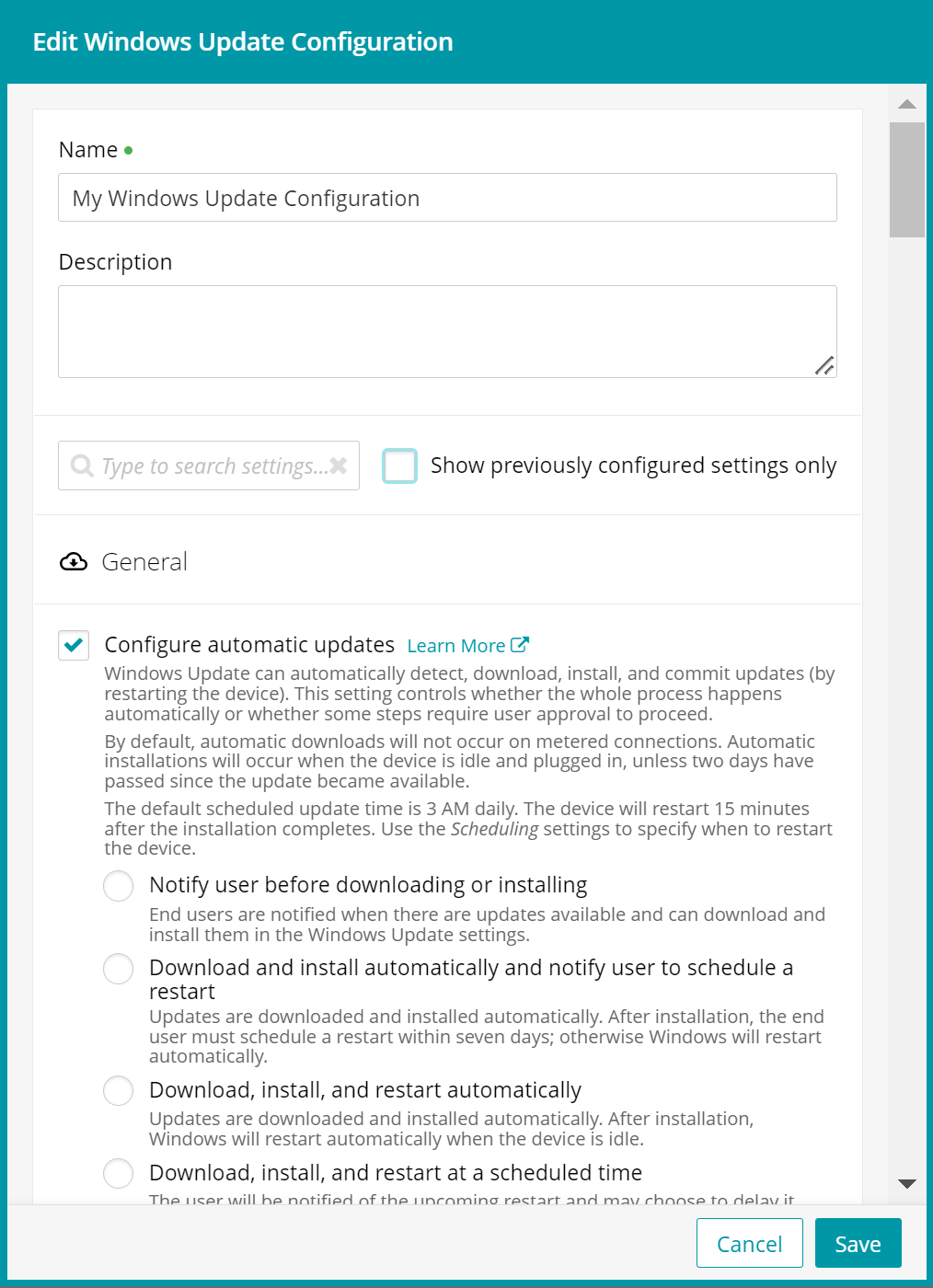
- Windows Update Configurations allow administrators to ensure your managed Windows devices are protected and run efficiently. They include the following settings:
- Time-line for installing Windows Updates
- How users are notified about updates
- Behavior of system restart after an update
- Whether users can check for updates on their own
- Whether users can prevent updates from being installed, or to pause them
- When to install updates, such as outside of active hours
- Ability to prevent updates from being installed immediately after becoming available
- Configuration of Windows System Update Services (WSUS), that allows administrators to manage and distribute updates through a management console
- Windows Feature Update Configurations are essentially new versions of Windows 10 or 11, released by Microsoft by-annually. They include the following settings:
- Ability to allow feature update rollback
- Timeline for installing Windows Feature Updates, deferrals, pauses, or device restart behavior
- Installing bi-annual Windows releases on target devices
- Ability to update the major Windows version, such as going from version 10 to version 11, or lock devices to a Windows product or specific release version (for example, Windows 10 or Windows 11 21H2)
- Ability to use Windows update channels (such as Insider Beta or General Availability)

NOTE: If your devices are managed through Azure AD, administrators have an option to allow associated devices to receive preview releases from Microsoft. To do that, simply register your Azure AD tenant with the Windows Insider Program for Business. For more details, see Getting started with the Windows Insider Program for Business. 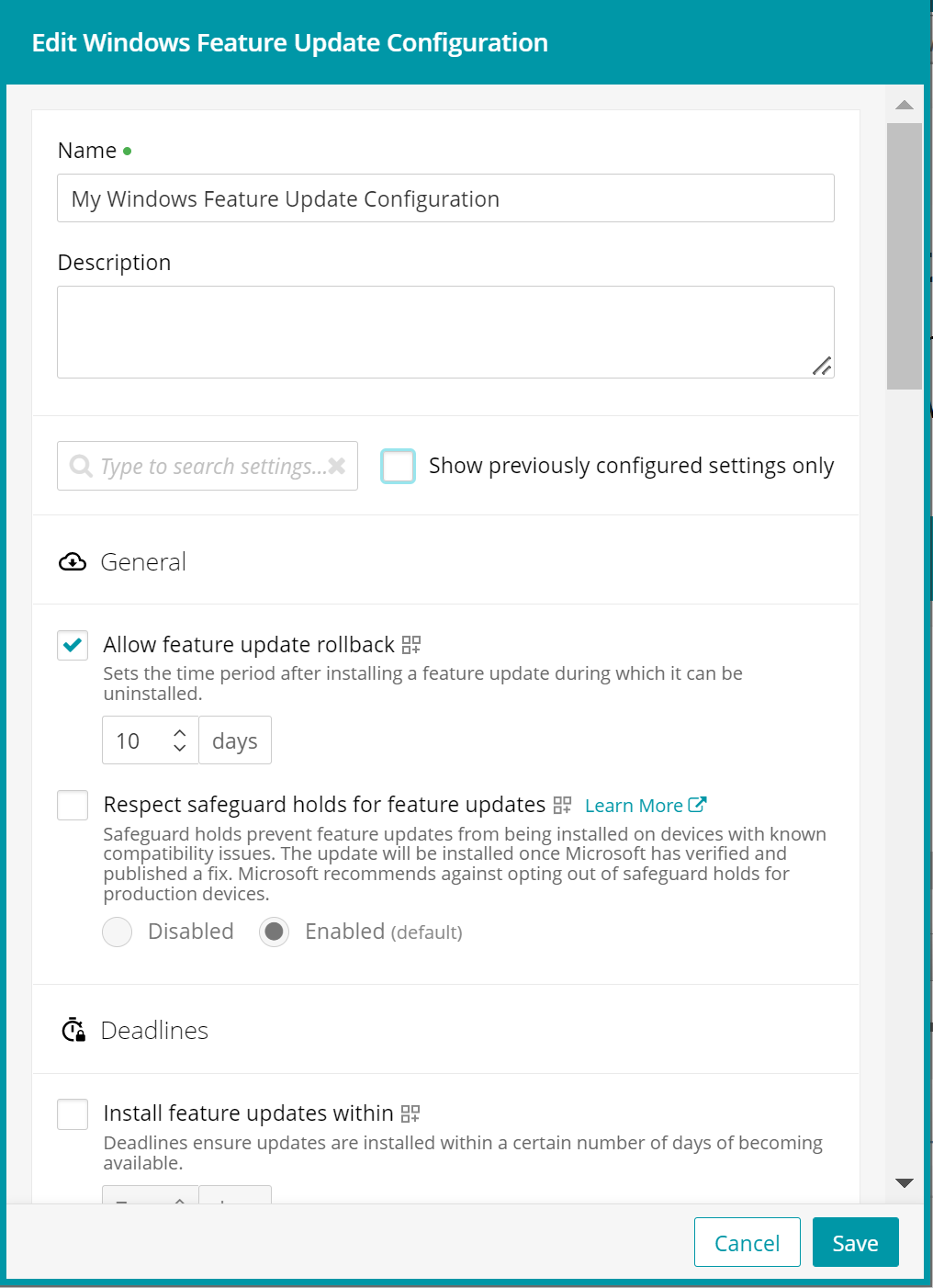
To create or edit a Windows Update or Windows Feature Update configuration:
- Select the Libraries tab in top navigation.
- Click Security.
- Windows Updates only. Complete one of the following steps:
- To create a new Windows Update configuration, choose Add New > Windows Update Configuration.
- To edit an existing Windows Update configuration, select it in the list, and click Edit.
- Windows Feature Updates only. Complete one of the following steps:
- To create a new Windows Feature Update configuration, choose Add New > Windows Feature Update Configuration.
- To edit an existing Windows Feature Update configuration, select it in the list, and click Edit.
- In the configuration view that appears on the right, ensure the configuration has a unique Name, and provide a Description, as applicable.
- Optional. To look for a specific setting, in the configuration view, in the search box under the Description field, type the setting name. Then, locate the desired setting in the list of search results that appears.
- Optional. If you are editing an existing configuration, if you want to display only the settings that are already configured, select Show previously configured settings only.
- For each configuration setting that you want to apply to managed devices, select the appropriate check box, then provide the desired value.
Only configure those settings that you want to apply to target devices. Any settings that are not configured (leaving the related check boxes cleared) are ignored, and the local settings on the device take place. Most settings are straightforward, allowing you to simply enable or disable them. In some cases you need to provide multiple values or choose from a list. Use the provided guidelines when making your selections.
For example:
- To allow users to remove installed Windows Feature Updates, in the Windows Feature Update configuration view, under General, select Allow feature update rollback, and specify the number of days during which the update can be uninstalled.
- To specify the timeframe for restarting a managed device after a Windows Feature Update is installed, in the Windows Feature Update configuration view, under Automatic Restarts, select Set automatic restart deadline for feature updates, and specify the maximum number of days during which the device does not need to restart. A forced restart occurs after this time period.
- To install Windows Updates only on specific days of the week , in the Windows Update Configuration view, under Scheduling > Install updates at, select Day of week, and choose the desired week day.
- When done, click Save.